IPTV Android TV Box Setup 2026: Complete Installation and Configuration Guide
An IPTV Android TV box is one of the most popular and versatile ways to stream internet television in 2026. These compact, affordable devices connect to your TV via HDMI and transform it into a smart streaming hub capable of playing thousands of IPTV channels in up to 4K quality. Whether you have a brand new OLED or an older HD television, an Android TV box paired with the right IPTV service delivers an experience that rivals or surpasses any cable or satellite setup.
This guide covers the complete IPTV Android TV box setup process from start to finish: choosing the right hardware, connecting and configuring your box, installing the best IPTV apps, entering your subscription credentials, and optimizing settings for the best possible streaming performance. By the end, you will have a fully functional IPTV setup streaming EdIPTV's 29,500 plus channels on your television.
Choosing the Right Android TV Box for IPTV
Not all Android TV boxes are created equal, and choosing the right hardware is crucial for a smooth IPTV experience. The market is flooded with cheap boxes using outdated chipsets that cannot handle modern IPTV streams. Here is what to look for and which boxes deliver the best IPTV Android TV box experience in 2026.
- Nvidia Shield TV Pro: The premium choice with Tegra X1+ processor, 3 GB RAM, Dolby Vision and Atmos support, AI upscaling, and gigabit ethernet. Best for enthusiasts who want the absolute best picture quality.
- Formuler Z11 Pro Max: Purpose-built for IPTV with the MyTVOnline 3 app pre-installed, 4 GB RAM, and an optimized remote. Excellent for users who want a plug-and-play IPTV experience.
- Mecool KM2 Plus: Certified Android TV with Amlogic S905X4 chip, Netflix and Disney Plus certification, and strong IPTV app support. Good mid-range option.
- Xiaomi TV Box S (2nd Gen): Affordable Google TV certified box with 4K HDR support, Dolby Vision, and access to the full Play Store. Best budget option from a reputable brand.
- BuzzTV XRS 4900: Another IPTV-focused box with a custom launcher optimized for live TV, 4 GB RAM, and a dedicated IPTV remote with number buttons for channel surfing.
When evaluating any Android box for IPTV, prioritize these specifications: at least 2 GB RAM (4 GB preferred), an Amlogic S905X4 or better chipset, ethernet port (not just WiFi), 4K HDR output capability, and access to Google Play Store or at least the ability to sideload apps. Avoid no-name boxes with less than 2 GB RAM or older S905X chipsets, as they will struggle with modern IPTV apps.
Initial Android TV Box Setup
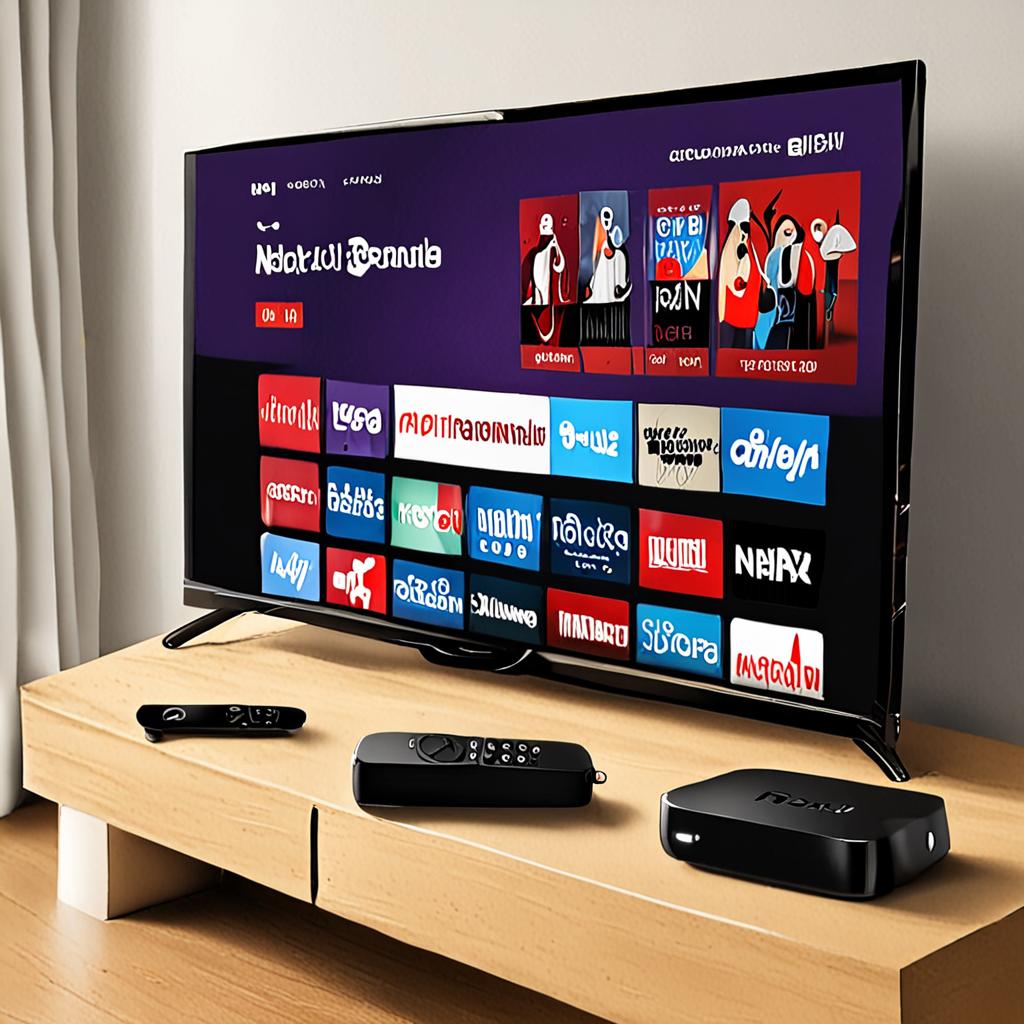
Setting up your IPTV Android TV box starts with basic hardware connections. Connect the box to your TV using the included HDMI cable. If your TV has multiple HDMI ports, use HDMI 1 or the port labeled ARC for the best compatibility. Connect an ethernet cable from your router to the box if possible. Plug in the power adapter. Insert batteries into the remote control.
Power on the box and follow the initial setup wizard. Select your language, connect to your WiFi network (if not using ethernet), and sign in with your Google account if prompted. If the box runs official Android TV or Google TV, signing in gives you access to the Play Store for app installation. If it runs a custom Android firmware, you will use alternative app sources.
Once the basic setup is complete, check for system updates. Navigate to Settings, System, and System Update. Install any available updates before proceeding with IPTV setup. Updated firmware often includes performance improvements, security patches, and better codec support that directly benefits IPTV streaming.
Installing IPTV Apps on Your Android TV Box
With your box configured, it is time to install an IPTV app. On boxes with Google Play Store access, open the store and search for your preferred app. TiviMate is the most recommended IPTV app for IPTV Android TV box users, offering a professional cable-like interface with EPG, recording, and favorites. IPTV Smarters Pro is another excellent choice with a user-friendly layout.
If your app is not available on the Play Store, you can sideload it. First, enable installation from unknown sources in Settings, Security. Then use a file manager app or the Downloader app (available on Play Store) to download the APK file from the app developer's website. Open the downloaded APK to install it. TiviMate's premium version and some other IPTV apps may require sideloading.
Connecting to EdIPTV on Your Android Box
Now comes the key step: connecting your IPTV app to EdIPTV. First, contact EdIPTV via WhatsApp at +1 (559) 508-2154 to activate your free 24-hour trial. You will receive three pieces of information: a server URL, a username, and a password. These credentials are all you need to access the full 29,500 plus channel lineup.
Open your installed IPTV app and look for the option to add a playlist or add a provider. Select Xtream Codes API as the connection type. Enter the server URL in the server field, your username, and your password exactly as provided. Tap connect or login. The app will communicate with EdIPTV's servers and download your channel list and EPG data.
Depending on the app and your internet speed, the initial channel list and EPG download may take one to three minutes for the full 29,500 plus channel lineup. Once loaded, channels appear organized by category (Sports, Entertainment, Movies, Kids, News, etc.) and by country. You are now ready to start watching.
Optimizing Android Box Settings for Best IPTV Performance
Several system-level optimizations improve IPTV performance on Android boxes. Navigate to Settings, Display, and set the output resolution to match your TV's native resolution, typically 4K (2160p) at 60Hz for modern TVs. Enable HDR if your TV supports it. These settings ensure your box outputs the highest quality signal your TV can accept.
In your IPTV app settings, enable Hardware Decoder. This is critical as it offloads video processing from software to the box's dedicated hardware decoder, which is significantly more efficient and can handle higher-resolution streams without dropping frames. Software decoding should only be used as a fallback if hardware decoding causes issues with specific channels.
Disable any power-saving modes or sleep timers that might interrupt long viewing sessions. Navigate to Settings, Device Preferences, and adjust the screen saver timeout to a longer duration or disable it entirely. For the best network performance, ensure your ethernet connection is active and showing a linked speed of 100 Mbps or higher in the network settings.
Organizing Channels and Creating Favorites
With 29,500 plus channels available, organization is key to a good IPTV Android TV box experience. Most IPTV apps allow you to create custom favorites lists. Browse through the channel categories and long-press on any channel you frequently watch to add it to favorites. Create multiple favorites groups if your app supports it: one for sports, one for entertainment, one for kids, and one for international channels.
TiviMate takes channel organization further with its channel group hiding feature. If there are entire categories you never watch, hide them to declutter your channel list. You can always unhide them later if your viewing preferences change. This transforms a potentially overwhelming 29,500 channel list into a curated selection tailored exactly to your tastes.
Troubleshooting Common Android TV Box IPTV Issues
- Box feels slow or laggy: Clear app caches via Settings, Apps, then select each app and clear cache. If the box has limited storage, uninstall apps you do not use. A factory reset can resolve persistent sluggishness.
- IPTV app crashes frequently: Ensure your box has adequate RAM (2 GB minimum). Check for app updates. If using an older box with 1 GB RAM, upgrade to a box with at least 2 GB for stable IPTV operation.
- No audio on some channels: Switch between hardware and software decoder in your IPTV app. Some audio codecs require specific decoder settings. Also check that your audio output format (PCM, passthrough, or auto) matches your connected audio device.
- Channels load slowly: Switch from WiFi to ethernet if possible. Check your internet speed. Clear the IPTV app cache. Ensure no other devices are consuming heavy bandwidth simultaneously.
- Remote control unresponsive: Replace batteries. Re-pair Bluetooth remotes via Settings, Remotes and Accessories. For IR remotes, ensure line of sight to the box's IR receiver.
Start Streaming with Your IPTV Android TV Box and EdIPTV
An IPTV Android TV box paired with EdIPTV creates a complete television replacement that delivers more channels, better quality, and greater flexibility than any cable or satellite service. With the right box, proper setup, and EdIPTV's 29,500 plus channels streaming in 4K with anti-freeze technology and 99.9 percent uptime, you have a viewing experience that traditional TV simply cannot compete with.
Try EdIPTV free for 24 hours and set up your Android TV box with the best IPTV service available. Contact the team via WhatsApp at +1 (559) 508-2154 to get your free trial credentials in minutes. No contracts, no credit card for the trial, and full access to all 29,500 plus channels. Plug in your box, install your app, connect to EdIPTV, and start watching. Get started today.
Ready to Start Streaming?
Get instant access to 20,000+ live channels, 4K streaming, and 80,000+ movies and series.
View Plans & Pricing